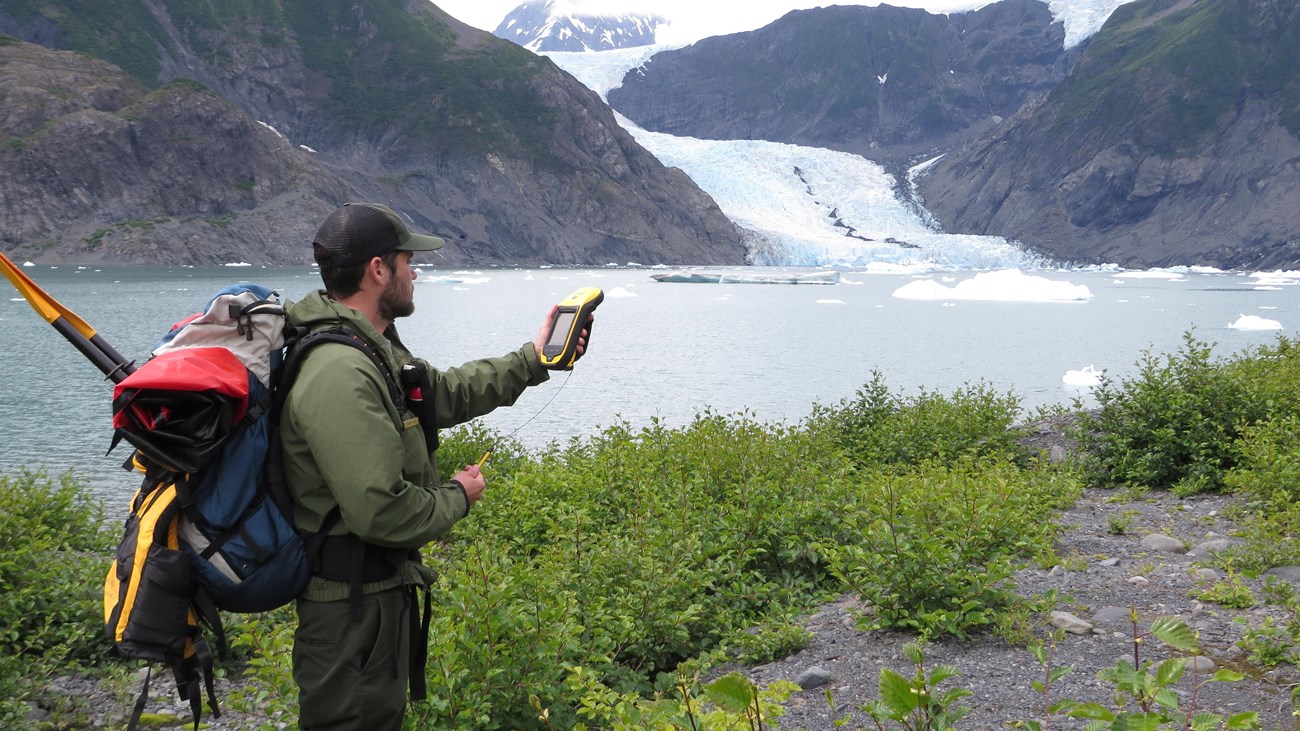
Data Collection, Exporting and Importing into Shape
File
Needed softwares:
1) Waypoint + (or Map Source,
etc.)
2) Avgarmin.avx
(ArcView Import Extension)
3) GPilotS PalmPilot (ver 4.3)
software (optional)
To Collect Track Data :
- Point data should be collected as a waypoint (if possible, average
180 points).
- Line and Polygon data will be collected as the "active" tracklog. Do
not "save" the active track on the Garmin to another saved track. If you do this
the receiver will reduce the number of points in you track so that it can
save on memory and this will ruin your file. USE ACTIVE TRACK ONLY FOR DATA
COLLECTION.
- Turn on the receiver and hit the MENU button twice. This will take you to
the main menu.
- Scroll down to the Track Logs selection.
- Press the ENTER button.
- Press the MENU button.
- Select SETUP LOGGING.
- Press ENTER.
- Select Record Mode.
- Press ENTER.
- Select Off and push ENTER.
- Scroll down to Interval and push ENTER.
- Select Time and push ENTER.
- Scroll down to Interval Value and enter the time interval rate you wish to
collect at.
*** Remember that you have 1900 track points available before you fill up
the memory. There are 3600 seconds in an hour, so if you collect a point every
second you will fill your memory with just over 30 minutes of collect time. A
point every 2 seconds = 1 hour of collection time, 5 seconds = 2.5 hours and so
on. If you are collecting data in a helicopter or automobile you can cover a lot
of ground in 5 seconds so make the time selection carefully. If you need
additional data storage memory you can use a palmpilot and GPilotS (ver 4.3)
software to store your field data on. GPilotS allows your Palm to emulate a
Garmin so that PC software "sees" Palm as a Garmin receiver and allows to you
dump from it to the PC. In addition, with GPilotS you can place your tracklogs
into categories, view your tracklogs and chose which categories to dump. I have
had problems with newer versions of this software but 4.3 seems to work fine.
ANOTHER NOTE: If you plan to use a PalmPilot with WAYPOINT +, you will need to
increase the buffer size that the software is set up to use. This is done very
simply. Open the "waypoint.ini" file in notepad (or the text editor of your
choice). The file can be found in your WINDOWS subdirectory on your workstation.
Change the "wssize=4000000" to "wssize=10000000", save and close the file. This
will allow you to download more data into the computer than you could
previously.
- Pressed the Enter button
- Push the QUIT button to go back to the Tracklog page
- Push MENU and scroll down to Clear Active Log
- Press ENTER
- Press ENTER one more time to confirm you selection. You will notice that
you now have 0% used. You can now turn the receiver off if you like.
- Go to location that want to start collect data
- Turn the receiver on. Allow the receiver to acquire enough satellites to
get a 3D fix (4 or more). Be sure to check your EHE, it should be 12 m. or
better (remember that this is a estimate) and your DOP (Dilution of Position).
Both of these values need to be as low as you can get them. On a Garmin a DOP
of higher than 4 will not yield you a very good position. Better than 3 is
desired.
- After you have as good an EHE and DOP as you can get, push the MENU button
twice. This will take you back to the Main menu.
- Scroll down to Track Logs
- Push ENTER and go to the Track Logs page
- Push MENU and Scoll down to Setup Logging
- Press ENTER and scroll to the Record Mode
- Press ENTER and select FILL. Your receiver is now collecting a track. A
point will be recorded at the time interval that you set previously
- Walk around your polygon or line.
- After you have finished walking around your polygon, change the Track Log
Record Mode back to OFF.
- Move to your next collection location and repeat the process.
Downloading Track (or Waypoint) Data:
- Either plug the receiver or PalmPilot (put Palmpilot in HOST mode
with GPilotS) into your computer.
- Start Waypoint+ on the computer.
- Select TRACK (or WAYPOINT) and DOWNLOAD. You should see the points
counting up. After it finishes, pick TRACK (or WAYPOINT) and PLOT to look at
your tracks. If you need to edit your tracks by deleting unneeded tracks you
can do this in the SUMMARY menu.
- After you have the tracks that you would like to export to ArcView, pick
FILE.
- Pick DATUM and be sure that the data is in WGS-84 or NAD-83.
- Pick CONFIGURATION. Data should be exported in decimal degrees.
- Pick SAVE and save to a COMMA DELIMITED TEXT FILE.
Input into
ArcView:
- Start ArcView.
- Load the AVGARMIN extension and start it.
- Check WAYPOINT+ Optional, TRACK/LINE (or WAYPOINT) and CREATE POLY (if you
want).
- Select the view.
- Input the datum and coordinate system.
- Pick CREATE. Software should ask for name of your waypoint+ export file
you want to import and name of shape file you want to create.
- Software should create your shape file and add it your view.
- Pick EXIT to return to your view.
Congratulations! You have successfully collected,
downloaded, exported, imported and created a shape file from your data.